Manual installation
Deprecated — developers only
This installation path is not recommended. Use the zPodFactory appliance instead.
If you prefer to install zPodFactory manually and potentially set yourself a dev environment for it, you can follow the below instructions.
We recommend starting with the zPodFactory appliance for any development work. If you need a standalone Linux base, the legacy zBox appliance was the previous development platform; new zPods use zcore as the mandatory core component (see zcore migration).
Deploy the zBox appliance and power it on with the correct network and OVF properties configuration.
Network setup
You can setup any additional specific networking configuration you need for your environment, but here is a quick example of what we use in our lab:
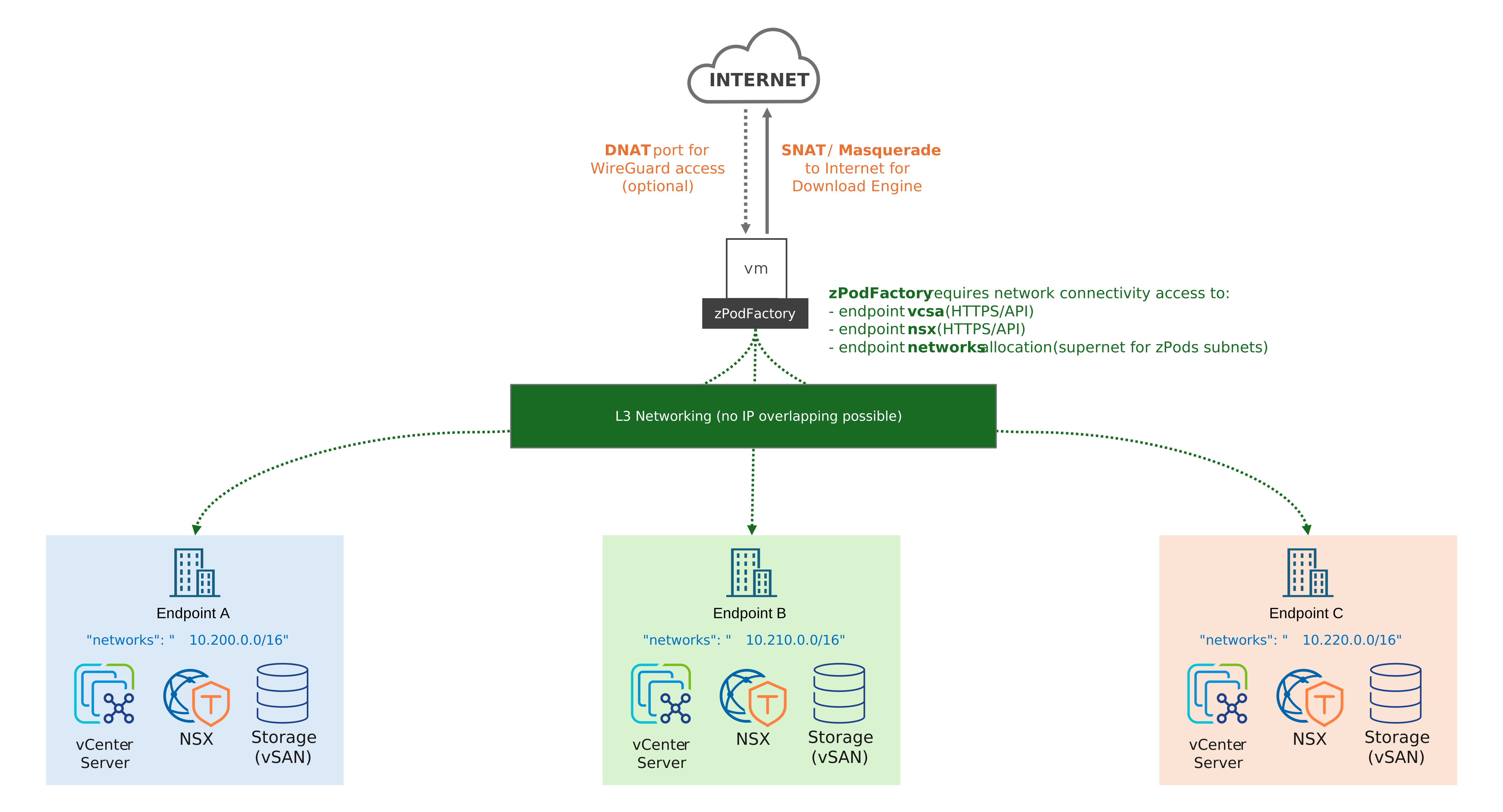
eth0: interface connected to a public IP (Internet)eth1: interface connected to the whole lab private network (L3/BGP fabric)
PS: Remember that for zPodFactory to work correctly you need L3 connectivity to
vCenter Server and ESXi Hosts(OVA/OVF uploads), andNSX Manager API Access. Those will be necessary for automating the deployment of the nested Layer 1 part of the labs. Also required will beconnectivity access to the networks that we provision in NSX-Tfor the nested environments (zPods), so that we can deploy the nested Layer 2 part of the labs. (ovf deploys, connections etc to the nested ESXi hosts that will be the foundation for any nested environment)
Storage setup
Let's update the appliance and install the latest updates:
Install cloud-guest-utils package:
❯ apt install cloud-guest-utils
Reading package lists... Done
Building dependency tree... Done
Reading state information... Done
The following additional packages will be installed:
  gdisk
Suggested packages:
  cloud-init
The following NEW packages will be installed:
  cloud-guest-utils gdisk
0 upgraded, 2 newly installed, 0 to remove and 0 not upgraded.
Need to get 249 kB of archives.
After this operation, 979 kB of additional disk space will be used.
Do you want to continue? [Y/n]
Get:1 http://deb.debian.org/debian bookworm/main amd64 cloud-guest-utils all 0.33-1 [27.9 kB]
Get:2 http://deb.debian.org/debian bookworm/main amd64 gdisk amd64 1.0.9-2.1 [221 kB]
Fetched 249 kB in 0s (715 kB/s)
Selecting previously unselected package cloud-guest-utils.
(Reading database ... 42664 files and directories currently installed.)
Preparing to unpack .../cloud-guest-utils_0.33-1_all.deb ...
Unpacking cloud-guest-utils (0.33-1) ...
Selecting previously unselected package gdisk.
Preparing to unpack .../gdisk_1.0.9-2.1_amd64.deb ...
Unpacking gdisk (1.0.9-2.1) ...
Setting up gdisk (1.0.9-2.1) ...
Setting up cloud-guest-utils (0.33-1) ...
Processing triggers for man-db (2.11.2-2) ...
Check current partition scheme (we grew the VM disk to 750GB on vCenter):
❯ fdisk -l
Disk /dev/sda: 750 GiB, 805306368000 bytes, 1572864000 sectors
Disk model: Virtual disk
Units: sectors of 1 * 512 = 512 bytes
Sector size (logical/physical): 512 bytes / 512 bytes
I/O size (minimum/optimal): 512 bytes / 512 bytes
Disklabel type: dos
Disk identifier: 0xb2fbd5f2

Device     Boot   Start       End   Sectors  Size Id Type
/dev/sda1  *       2048    999423    997376  487M 83 Linux
/dev/sda2       1001470 104855551 103854082 49.5G  5 Extended
/dev/sda5       1001472 104855551 103854080 49.5G 8e Linux LVM


Disk /dev/mapper/vg-swap: 7.63 GiB, 8191475712 bytes, 15998976 sectors
Units: sectors of 1 * 512 = 512 bytes
Sector size (logical/physical): 512 bytes / 512 bytes
I/O size (minimum/optimal): 512 bytes / 512 bytes


Disk /dev/mapper/vg-root: 41.89 GiB, 44979716096 bytes, 87851008 sectors
Units: sectors of 1 * 512 = 512 bytes
Sector size (logical/physical): 512 bytes / 512 bytes
I/O size (minimum/optimal): 512 bytes / 512 bytes
Grow the extended partition to the new maximum available geometry:
❯ growpart /dev/sda 2
CHANGED: partition=2 start=1001470 old: size=103854082 end=104855551 new: size=1571862497 end=1572863966
Check the changes:
❯ fdisk -l
Disk /dev/sda: 750 GiB, 805306368000 bytes, 1572864000 sectors
Disk model: Virtual disk
Units: sectors of 1 * 512 = 512 bytes
Sector size (logical/physical): 512 bytes / 512 bytes
I/O size (minimum/optimal): 512 bytes / 512 bytes
Disklabel type: dos
Disk identifier: 0xb2fbd5f2

Device     Boot   Start        End    Sectors   Size Id Type
/dev/sda1  *       2048     999423     997376   487M 83 Linux
/dev/sda2       1001470 1572863966 1571862497 749.5G  5 Extended
/dev/sda5       1001472  104855551  103854080  49.5G 8e Linux LVM
Grow the logical partition used for LVM2:
❯ growpart /dev/sda 5
CHANGED: partition=5 start=1001472 old: size=103854080 end=104855551 new: size=1571862495 end=1572863966
Check the changes:
❯ fdisk -l
Disk /dev/sda: 750 GiB, 805306368000 bytes, 1572864000 sectors
Disk model: Virtual disk
Units: sectors of 1 * 512 = 512 bytes
Sector size (logical/physical): 512 bytes / 512 bytes
I/O size (minimum/optimal): 512 bytes / 512 bytes
Disklabel type: dos
Disk identifier: 0xb2fbd5f2

Device     Boot   Start        End    Sectors   Size Id Type
/dev/sda1  *       2048     999423     997376   487M 83 Linux
/dev/sda2       1001470 1572863966 1571862497 749.5G  5 Extended
/dev/sda5       1001472 1572863966 1571862495 749.5G 8e Linux LVM
Verify physical volume details:
❯ pvdisplay
  --- Physical volume ---
  PV Name               /dev/sda5
  VG Name               vg
  PV Size               749.52 GiB / not usable 1.98 MiB
  Allocatable           yes
  PE Size               4.00 MiB
  Total PE              191877
  Free PE               179200
  Allocated PE          12677
  PV UUID               B0U0tY-X3d5-koil-ORim-6F1t-8284-FgWArx
Resize the physical volume to the maximum available geometry (if growpart didn't take care of this):
❯ pvresize /dev/sda5
  Physical volume "/dev/sda5" changed
  1 physical volume(s) resized or updated / 0 physical volume(s) not resized
Display the /dev/vg/root details:
❯ lvdisplay /dev/vg/root
  --- Logical volume ---
  LV Path                /dev/vg/root
  LV Name                root
  VG Name                vg
  LV UUID                15WYF1-uuTo-Go9v-kVGX-Yokc-CkXY-EMhgYf
  LV Write Access        read/write
  LV Creation host, time zbox, 2023-09-19 13:43:34 +0000
  LV Status              available
  # open                 1
  LV Size                41.89 GiB
  Current LE             10724
  Segments               1
  Allocation             inherit
  Read ahead sectors     auto
  - currently set to     256
  Block device           254:1
Now let's extend this to the available space on the PV:
❯ lvextend -l +100%FREE /dev/vg/root
  Size of logical volume vg/root changed from 41.89 GiB (10724 extents) to 741.89 GiB (189924 extents).
  Logical volume vg/root successfully resized.
Verify the current filesystem free space information:
❯ duf -only local
╭────────────────────────────────────────────────────────────────────────────────────────────╮
│ 2 local devices                                                                            │
├────────────┬────────┬───────┬────────┬───────────────────────────────┬──────┬──────────────┤
│ MOUNTED ON │   SIZE │  USED │  AVAIL │              USE%             │ TYPE │ FILESYSTEM   │
├────────────┼────────┼───────┼────────┼───────────────────────────────┼──────┼──────────────┤
│ /          │  40.9G │  1.5G │  37.3G │ [....................]   3.7% │ ext4 │ /dev/vg/root │
│ /boot      │ 446.2M │ 57.7M │ 360.2M │ [##..................]  12.9% │ ext4 │ /dev/sda1    │
╰────────────┴────────┴───────┴────────┴───────────────────────────────┴──────┴──────────────╯
We now need to do a filesystem resize to take into account the new geometry and verify the filesystem afterwards:
❯ resize2fs /dev/vg/root
resize2fs 1.47.0 (5-Feb-2023)
Filesystem at /dev/vg/root is mounted on /; on-line resizing required
old_desc_blocks = 6, new_desc_blocks = 93
The filesystem on /dev/vg/root is now 194482176 (4k) blocks long.
❯ duf -only local
╭────────────────────────────────────────────────────────────────────────────────────────────╮
│ 2 local devices                                                                            │
├────────────┬────────┬───────┬────────┬───────────────────────────────┬──────┬──────────────┤
│ MOUNTED ON │   SIZE │  USED │  AVAIL │              USE%             │ TYPE │ FILESYSTEM   │
├────────────┼────────┼───────┼────────┼───────────────────────────────┼──────┼──────────────┤
│ /          │ 730.0G │  1.5G │ 698.3G │ [....................]   0.2% │ ext4 │ /dev/vg/root │
│ /boot      │ 446.2M │ 57.7M │ 360.2M │ [##..................]  12.9% │ ext4 │ /dev/sda1    │
╰────────────┴────────┴───────┴────────┴───────────────────────────────┴──────┴──────────────╯
We now have a 730GB root filesystem, which will be more than enough for a while if you are using MANY VMware products in your nested labs.
DNS configuration
zPodFactory does manage the DNS configuration for the nested environments, so you will need to configure a DNS server that will be used by the nested environments.
For this we are using dnsmasq, a simple linux daemon that serves as our DNS facility.
It will rely on a watchdog, that will check any modification to the configuration file, and will send a SIGHUP signal to the dnsmasq process to reload the configuration.
Let's set up the base dnsmasq configuration file /etc/dnsmasq.conf:
listen-address=127.0.0.1,X.X.X.X
interface=lo,eth0
bind-interfaces
expand-hosts
dns-forward-max=1500
cache-size=10000
no-dhcp-interface=lo,eth0
server=1.1.1.1
domain=zpod.lab
local=/zpod.lab/
servers-file=/zPod/zPodDnsmasqServers/servers.conf
This is obviously tied to my specific configuration so i'll highlight the important parts:
listen-address: the IP address(es) that dnsmasq will listen oninterface: the interface(s) that dnsmasq will listen onno-dhcp-interface: the interface(s) that dnsmasq will not listen on for DHCP requests (We don't need a DHCP Server on this VM)server: the DNS server(s) that dnsmasq will use to resolve DNS requests upstreamdomainandlocal: the domain name that dnsmasq will use to resolve DNS requests locally for the deployed nested envs:
As an example if you put zpod.lab here, every zPod deployed, will have a DNS name like this:
zpodname.zpod.lab
and all the DNS requests for this domain will be resolved by another dnsmasq instance on the nested environment itself also through dnsmasq.
server=/specificdomain/dnsip: this is used to forward specific DNS requests to a specific DNS server, in this case we are forwarding all the requests for thezpod.iodomain to the DNS serverservers-file: this is the file that will be used to store the DNS records for the deployed nested environments
Every time a nested environment is deployed or destroyed, the
servers-fileconfiguration file will be updated with the new information, and the watchdog will send a SIGHUP signal to dnsmasq to reload the configuration.
Restart the dnsmasq service.
Create the following systemd service file /etc/systemd/system/zdnsmasqservers.service:
[Unit]
Description=zPodFactory dnsmasq watchdog
After=network.target

[Service]
User=root
Type=simple
ExecStart=/usr/bin/python3 -u /usr/local/bin/zdnsmasqservers-watchdog.py
Restart=always

SyslogIdentifier=zdnsmasqservers


[Install]
WantedBy=multi-user.target
Create the following python script /usr/local/bin/zdnsmasqservers-watchdog.py associated to the systemd service file above:
#!/usr/bin/env python3
import subprocess
import time

from watchdog.events import PatternMatchingEventHandler
from watchdog.observers import Observer


class Handler(PatternMatchingEventHandler):
    def on_any_event(self, event):
        if event.is_directory:
            return None

        if event.event_type == "modified":
            print(
                f"{event.src_path} file was {event.event_type} - "
                "Send SIGHUP to dnsmasq..."
            )
            subprocess.call(["pkill", "-SIGHUP", "dnsmasq"])


if __name__ == "__main__":
    event_handler = Handler(patterns=["servers.conf"])
    observer = Observer()
    observer.schedule(
        event_handler,
        "/zPod/zPodDnsmasqServers", # this is the directory where the servers.conf file will be stored
        recursive=False,
    )
    observer.start()
    try:
        while True:
            time.sleep(1)
    except KeyboardInterrupt:
        observer.stop()
    observer.join()
Install python3-watchdog package used in the script.
Change permissions to provide execution permission on the script:
Create the /zPod/zPodDnsmasqServers directory:
Reload systemctl daemon:
Enable the service:
❯ systemctl enable zdnsmasqservers.service
Created symlink /etc/systemd/system/multi-user.target.wants/zdnsmasqservers.service → /etc/systemd/system/zdnsmasqservers.service.
Start the service:
Verify the service is running:
❯ systemctl status zdnsmasqservers.service
● zdnsmasqservers.service - zPodFactory dnsmasq watchdog
     Loaded: loaded (/etc/systemd/system/zdnsmasqservers.service; enabled; preset: enabled)
     Active: active (running) since Thu 2023-10-05 14:42:19 UTC; 8min ago
   Main PID: 13681 (python3)
      Tasks: 4 (limit: 19135)
     Memory: 8.1M
        CPU: 66ms
     CGroup: /system.slice/zdnsmasqservers.service
             └─13681 /usr/bin/python3 -u /usr/local/bin/zdnsmasqservers-watchdog.py

Oct 05 14:42:19 zpodfactory systemd[1]: Started zdnsmasqservers.service - zPodFactory dnsmasq watchdog.
Check the logs (this is an example where I edited the file manually to check the watchdog could detect changes and was sending the SIGHUP signal to dnsmasq):
You'll have this behavior happen everytime you deploy or destroy a new nested environment.
❯ journalctl -u zdnsmasqservers.service


Oct 05 14:42:19 zpodfactory systemd[1]: Started zdnsmasqservers.service - zPodFactory dnsmasq watchdog.
Oct 05 14:42:31 zpodfactory zdnsmasqservers[13681]: /zPod/zPodDnsmasqServers/servers.conf file was modified - Send SIGHUP to dnsmasq...
Docker installation
The whole project relies on a docker compose application stack.
❯ apt install docker-ce docker-compose-plugin
Reading package lists... Done
Building dependency tree... Done
Reading state information... Done
The following additional packages will be installed:
  containerd.io docker-buildx-plugin docker-ce-cli iptables libip6tc2 libltdl7 libslirp0 pigz slirp4netns
Suggested packages:
  aufs-tools cgroupfs-mount | cgroup-lite firewalld
The following NEW packages will be installed:
  containerd.io docker-buildx-plugin docker-ce docker-ce-cli docker-compose-plugin iptables libip6tc2 libltdl7 libslirp0 pigz
  slirp4netns
0 upgraded, 11 newly installed, 0 to remove and 0 not upgraded.
Need to get 108 MB of archives.
After this operation, 403 MB of additional disk space will be used.
Do you want to continue? [Y/n]
zPodCore installation
Create a directory to setup the application stack.
Clone the zPodCore repository:
Install uv (manages Python versions and dependencies):
On Debian/Ubuntu, install build dependencies for zpodapi / zpodengine (psycopg2 compiles from source):
For each subproject (zpodapi, zpodengine, zpodcli, zpodsdk), run:
for i in zpodapi zpodengine zpodcli zpodsdk; do
  cd $HOME/git/zpodcore/$i && uv sync
done
cd $HOME/git/zpodcore
Create a .env file in $HOME/git/zpodcore:
Warning
Change X.X.X.X at the bottom by the IP of this zPodFactory VM
Build the Docker container images for the zPodCore application stack.
Setup an additional apt list for some additional packages
wget -qO - 'https://proget.makedeb.org/debian-feeds/prebuilt-mpr.pub' | gpg --dearmor | tee /usr/share/keyrings/prebuilt-mpr-archive-keyring.gpg 1> /dev/null
echo "deb [arch=all,$(dpkg --print-architecture) signed-by=/usr/share/keyrings/prebuilt-mpr-archive-keyring.gpg] https://proget.makedeb.org prebuilt-mpr $(lsb_release -cs)" |  tee /etc/apt/sources.list.d/prebuilt-mpr.list
apt update
Here is a facility script called deploy.sh that will help launch the docker compose full application stack with some pre-configured settings through the zPodAPI. (curl is used for this)
Warning
This script is HIGHLY deprecated, we recommend using the zPodFactory Appliance instead. Check the zPodFactory Appliance installation script for more information if you really want to install this manually.
We will keep this script for reference purposes, but we will not update it anymore.
#!/usr/bin/sh

PS4="$(tput setaf 3)>>>$(tput sgr0) "

ZPODAPI_URL=X.X.X.X:8000
PREFIX=project

set -x

# Shut down docker
docker compose down

# Remove volumes
docker volume rm ${PREFIX}_zpod_vol_postgres ${PREFIX}_zpod_vol_prefect

# Restart docker
just zpodcore-start-background
sleep 10

# Execute first flow to prep prefect
# This avoids the unique key error "uq_configuration__key" problem when scheduling a lot of deployments to run at the same time
just zpodengine-cmd python src/zpodengine/flow_init.py

# Deploy
just zpodengine-deploy-all

# Delete library entries
just zpodapi-exec "rm -rf /library/default"

# Set zpodfactory_host
curl -X PATCH http://$ZPODAPI_URL/settings/name=zpodfactory_host -H "Content-Type: application/json" -d '{
  "value": "X.X.X.X"
}'

# Set zpodfactory_default_domain
curl -X PATCH http://$ZPODAPI_URL/settings/name=zpodfactory_default_domain -H "Content-Type: application/json" -d '{
  "value": "zpod.lab"
}'

# Set zpodfactory_ssh_key
curl -X PATCH http://$ZPODAPI_URL/settings/name=zpodfactory_ssh_key -H "Content-Type: application/json" -d '{
  "value": "ssh-rsa XXXXXXXX… root@zPodMaster"
}'

# Set Broadcom download token (replaces legacy Customer Connect credentials)
curl -X PATCH http://$ZPODAPI_URL/settings/name=zpodfactory_broadcom_download_token -H "Content-Type: application/json" -d '{
  "value": "YOUR_BROADCOM_DOWNLOAD_TOKEN"
}'

# Set some VMware licenses
curl -X POST http://$ZPODAPI_URL/settings -H "Content-Type: application/json" -d '{
  "name": "license_vcsa-8_esxi",
  "description": "vSphere 8 Enterprise Plus with Add-on for Kubernetes",
  "value": "XXXXX-XXXXX-XXXXX-XXXXXX-XXXXX"
}'

curl -X POST http://$ZPODAPI_URL/settings -H "Content-Type: application/json" -d '{
  "name": "license_vcsa-8_vcenter",
  "description": "vCenter Server 8 Standard",
  "value": "XXXXX-XXXXX-XXXXX-XXXXXX-XXXXX"
}'

curl -X POST http://$ZPODAPI_URL/settings -H "Content-Type: application/json" -d '{
  "name": "license_vcsa-8_vsan",
  "description": "vSAN Enterprise Plus",
  "value": "XXXXX-XXXXX-XXXXX-XXXXXX-XXXXX"
}'

curl -X POST http://$ZPODAPI_URL/settings -H "Content-Type: application/json" -d '{
  "name": "license_vcsa-8_tanzu",
  "description": "Tanzu Standard (Subscription)",
  "value": "XXXXX-XXXXX-XXXXX-XXXXXX-XXXXX"
}'

# Set NSX license
curl -X POST http://$ZPODAPI_URL/settings -H "Content-Type: application/json" -d '{
  "name": "license_nsx-4_enterprise",
  "description": "NSX Data Center Enterprise Plus",
  "value": "XXXXX-XXXXX-XXXXX-XXXXXX-XXXXX"
}'
# Create vSphere/NSX target endpoint
curl -X POST http://$ZPODAPI_URL/endpoints -H "Content-Type: application/json" -d '{
  "name": "vSphere-SDDC",
  "description": "vSphere SDDC with vCenter/NSX",
  "endpoints": {
    "compute": {
      "name": "vcenter.fqdn.com",
      "driver": "vsphere",
      "hostname": "vcenter.fqdn.com",
      "username": "myserviceusername",
      "password": "myservicepassword",
      "datacenter": "Datacenter-Paris",
      "resource_pool": "ClusterName",
      "storage_policy": "zPods",
      "storage_datastore": "vsanDatastore",
      "contentlibrary": "zPodFactory",
      "vmfolder": "zPods-Paris"
    },
    "network": {
      "name": "nsxmanager.fqdn.com",
      "driver": "nsxt",
      "hostname": "nsxmanager.fqdn.com",
      "username": "myserviceusername",
      "password": "myservicepassword",
      "networks": "10.96.0.0/16",
      "transportzone": "overlay-tz",
      "edgecluster": "edgecluster-prod",
      "t0": "T0-Paris-Prod",
      "macdiscoveryprofile": "Nested-Mac-Discovery-Profile"
    }
  },
  "enabled": true
}'


# Add libraries
curl -X POST http://$ZPODAPI_URL/libraries -H "Content-Type: application/json" -d '{
  "name": "default",
  "description": "Default zPodFactory library",
  "git_url": "https://github.com/zpodfactory/zpodlibrary"
}'

# Enable core component (use zcore-* on current releases)
curl -X PUT http://$ZPODAPI_URL/components/uid=zcore-13.5/enable

# Enable component esxi
curl -X PUT http://$ZPODAPI_URL/components/uid=esxi-8.0u2b/enable

# Enable component vcsa
curl -X PUT http://$ZPODAPI_URL/components/uid=vcsa-8.0u2b/enable

# Enable component nsx
curl -X PUT http://$ZPODAPI_URL/components/uid=nsx-4.1.2.3/enable

# Add zcore profile
curl -X POST http://$ZPODAPI_URL/profiles?force=true -H "Content-Type: application/json" -d '{
  "name": "zcore",
  "profile": [
    {
      "component_uid": "zcore-13.5"
    }
  ]
}'

# Add hosts profile
curl -X POST http://$ZPODAPI_URL/profiles?force=true -H "Content-Type: application/json" -d '{
  "name": "hosts",
  "profile": [
    {
      "component_uid": "zcore-13.5"
    },
    [
      {
        "component_uid": "esxi-8.0u2b",
        "host_id": 11,
        "hostname": "esxi11",
        "vcpu": 4,
        "vmem": 12
      },
      {
        "component_uid": "esxi-8.0u2b",
        "host_id": 12,
        "hostname": "esxi12",
        "vcpu": 4,
        "vmem": 12
      }
    ]
  ]
}'

# Add 'base' profile
curl -X POST http://$ZPODAPI_URL/profiles?force=true -H "Content-Type: application/json" -d '{
  "name": "base",
  "profile": [
    {
      "component_uid": "zcore-13.5"
    },
    [
      {
        "component_uid": "esxi-8.0u2b",
        "host_id": 11,
        "hostname": "esxi11",
        "vcpu": 6,
        "vmem": 48
      },
      {
        "component_uid": "esxi-8.0u2b",
        "host_id": 12,
        "hostname": "esxi12",
        "vcpu": 6,
        "vmem": 48
      }
    ],
    {
        "component_uid": "vcsa-8.0u2b"
    }
  ]
}'

# Add 'sddc' profile
curl -X POST http://$ZPODAPI_URL/profiles?force=true -H "Content-Type: application/json" -d '{
  "name": "sddc",
  "profile": [
    {
      "component_uid": "zcore-13.5"
    },
    [
      {
        "component_uid": "esxi-8.0u2b",
        "host_id": 11,
        "hostname": "esxi11",
        "vcpu": 6,
        "vmem": 48
      },
      {
        "component_uid": "esxi-8.0u2b",
        "host_id": 12,
        "hostname": "esxi12",
        "vcpu": 6,
        "vmem": 48
      },
      {
        "component_uid": "esxi-8.0u2b",
        "host_id": 13,
        "hostname": "esxi13",
        "vcpu": 6,
        "vmem": 48
      }
    ],
    {
        "component_uid": "vcsa-8.0u2b"
    },
    {
        "component_uid": "nsx-4.1.2.3"
    }
  ]
}'
TOKEN=$(docker compose logs | grep zpodapi | grep 'API Token:' | awk '{ print $5 }')

just zcli factory add zpodfactory -s http://$ZPODAPI_URL -t $TOKEN -a

docker compose logs -f
Warning
Add ZPODAPI_DEV_AUTOAUTH_USER=1 in your .env file if you want to work easily without setting up an authentication token.
Change X.X.X.X by the IP of this zPodFactory VM
Set your Broadcom Support Portal download token (zpodfactory_broadcom_download_token)
Change the public SSH Key to the one you want to use to login to the nested environments components. (zcore, esxi mainly)
Change the vSphere/NSX target endpoint configuration to match your physical environment. Make sure the values you specify for your environment do exist in vSphere and NSX.
Change the licenses keys
Adapt whatever you want for the profiles, those are provided examples.
Make the script executable
Set up just zcli (uv handles the CLI environment automatically):
Finally launch the docker compose application stack with our script:
This should take a while at first launch, and display everything happening in the background as we are automatically following the docker compose logs.
You can now head to the Administration Guide to learn how to setup/manage zPodFactory.